
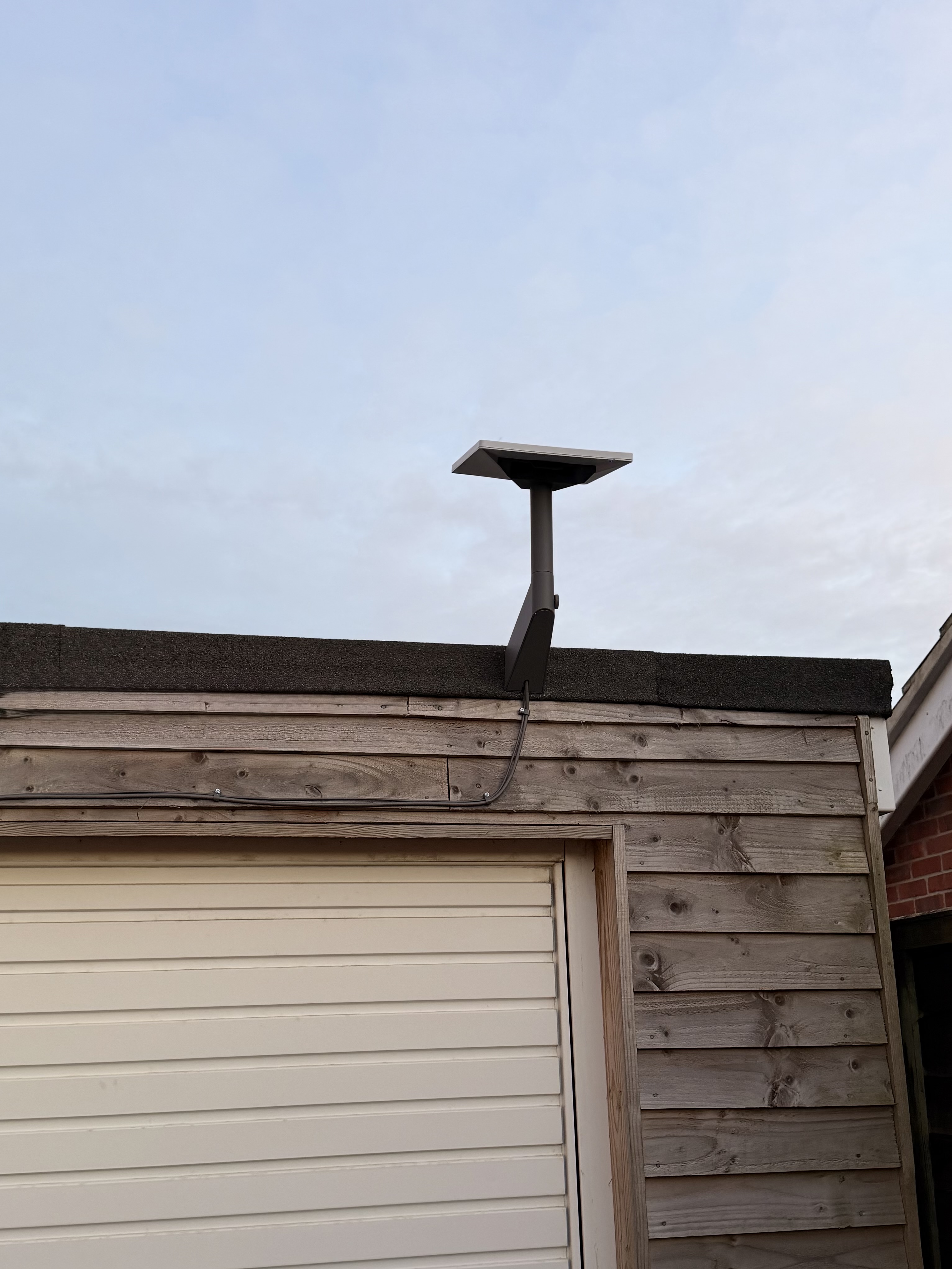
My primary FTTP connection is generally excellent offering 5ms latency at best, having a backup; something that is reliant on a string of satelites 600Km above the earth is just fascinating to me.
Starlink Mini is SpaceX's compact satellite dish.
It's portable and for this use case - it can be put into 'Standby Mode' for just £4.50 per month.
In August 2025, Starlink replaced their free 'Pause Mode' with a paid 'Standby Mode'.
It's pretty reasonable:
The Starlink Mini itself costs £159.
That's reasonable for a satellite internet backup solution, and significantly cheaper than most 4G/5G backup solutions with similar capabilities.
It has the advantage of working pretty much anywhere with a view of the sky so no relying on mobile network coverage.
IPv6 Configuration with UniFi isn't pretty #
One thing that caught me out was getting IPv6 working properly.
Starlink supports IPv6 natively but it requires a bit of configuration on the UniFi side to work correctly.
There's a bug in UniFi that prevents the default IPv6 route from being assigned automatically, which means you'll need to fix it manually.
Starlink uses Carrier-Grade NAT (CGNAT) which makes port forwarding impossible on IPv4.
If you're hosting anything this can be solved by using a Cloudflare Tunnel .
IPv6 also solves this by giving you a proper routable address space.
Starlink allocates a /56 IPv6 prefix via DHCPv6 Prefix Delegation.
Here's how to get it working with UniFi gear:
Navigate to your WAN settings (Settings → Internet → Primary WAN):
Apply the settings and you should see an IPv6 address appear in the 'Internet' field.
Now enable IPv6 on your LAN networks using SLAAC for address assignment.
At this point you might think everything is working, but if you try to access IPv6 resources from your LAN clients, you'll find they can't route properly.
This is because of a bug in UniFi.
UniFi has a problem where it doesn't automatically assign the default IPv6 route.
You'll need to fix this manually via SSH.
Step 1: SSH into your UniFi device (UDM, UDM Pro, etc.)
If you need to set SSH keys first, go to Control Plane → Console → SSH and configure them.
The username is root and the password is what you set in the console settings.
Step 2: Check if the default route is missing
This will likely return blank, confirming the problem.
The important bit is the IPv6 link-local address at the start ( fe80::200:6edd:3e00:101 in this example).
This is your default gateway.
Step 4: Add the default route manually
Replace the IPv6 address and interface with your own values:
Note: eth7 is typically the WAN interface on a UDM Pro.
For other UniFi devices it might be different (e.g., eth4 on a standard UDM).
Step 5: Test from your LAN clients
Try pinging an IPv6 address or visiting an IPv6-only website.
It should work now.
This fix is not persistent across UniFi firmware updates.
If you update your UniFi device, there's a chance the default route will be removed and you'll need to add it again.
For a persistent solution, you could create a script at /data/on_boot.d/20-ipv6-route.sh :
Make it executable: chmod +x /data/on_boot.d/20-ipv6-route.sh
The beauty of having Starlink as a secondary WAN connection is that UniFi makes failover pretty straightforward.
Configure your Starlink connection as WAN2, set up load balancing with failover priority, and you're done.
If my primary connection drops, traffic automatically routes via Starlink.
There's another brilliant benefit I hadn't initially considered: power cuts.
I have solar battery storage that keeps the house running during power outages, and because Starlink isn't dependent on local infrastructure (which might also be affected by the same power cut), the internet keeps working.
My FTTP connection goes through local cabinets and equipment that stop working when the power goes out, but Starlink just keeps going.
If you've set up Starlink failover with UniFi or run into similar IPv6 quirks, I'd love to hear how it went, drop a comment below.
Related Stories



Source: This article was originally published by Hacker News
Read Full Original Article →
Comments (0)
No comments yet. Be the first to comment!
Leave a Comment